2024-11-11
In this chapter, you will learn how to set styles such as color, line thickness, and transparency for the shapes you draw. We will also explain the order of drawing and the concept of layers.
Setting Styles for Shapes
In p5.js, you can set styles such as color, line thickness, and transparency for the shapes you draw. Let's look at functions like fill(), stroke(), and strokeWeight() that set these styles.
These style-setting functions need to be called before drawing the shapes. Once a style is set, it will be applied to all shapes drawn afterward.
In the code below, comments like // Set the line color to gray are written. By writing //, the rest of the line is treated as a comment and will not be executed. Comments are used to explain the code and make it easier for others to understand when reading it.
function setup() {
    createCanvas(520, 320);
    background('#D6E3ED');

    stroke(50); // Set the line color to gray
    strokeWeight(6); // Set the line thickness to 6

    fill(255); // Set the shape color to white (grayscale)
    rect(60, 100, 120, 120);

    fill(62, 168, 255); // Set the shape color to blue (RGB)
    rect(200, 100, 120, 120);

    fill('#0868CE'); // Set the shape color to blue (HEX)
    rect(340, 100, 120, 120);
}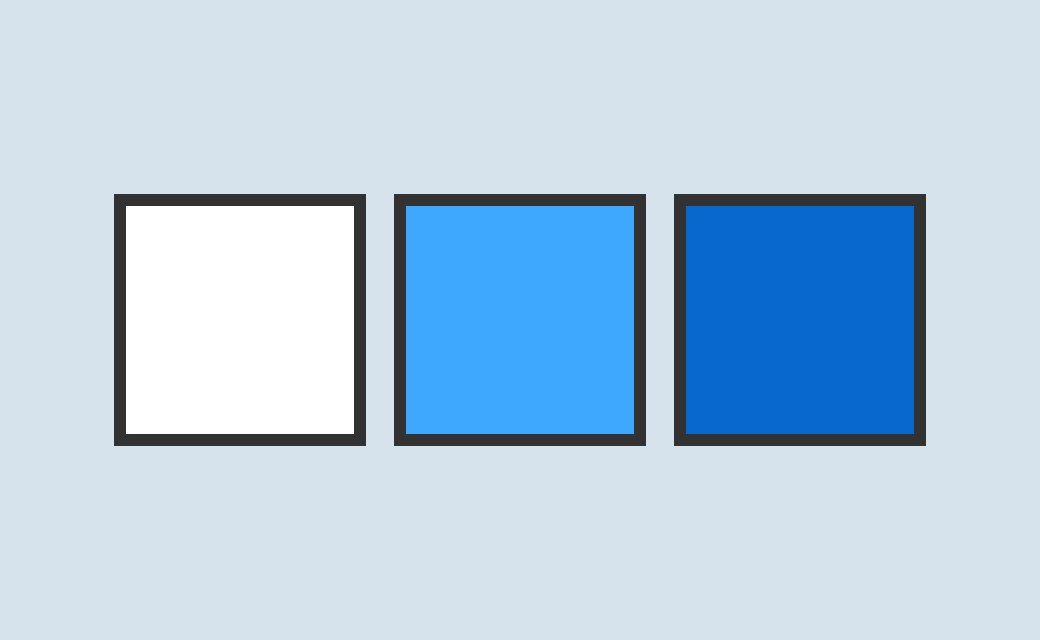
In this code, stroke(50) sets the line color of the shapes to gray. As a result, the lines of all shapes drawn afterward will be gray. On the other hand, the fill function is called before the rect function to set the color. Therefore, the color of each square drawn by the rect function is different.
Specifying Colors
In p5.js, there are three ways to specify colors:
| Method | Description | Example |
|---|---|---|
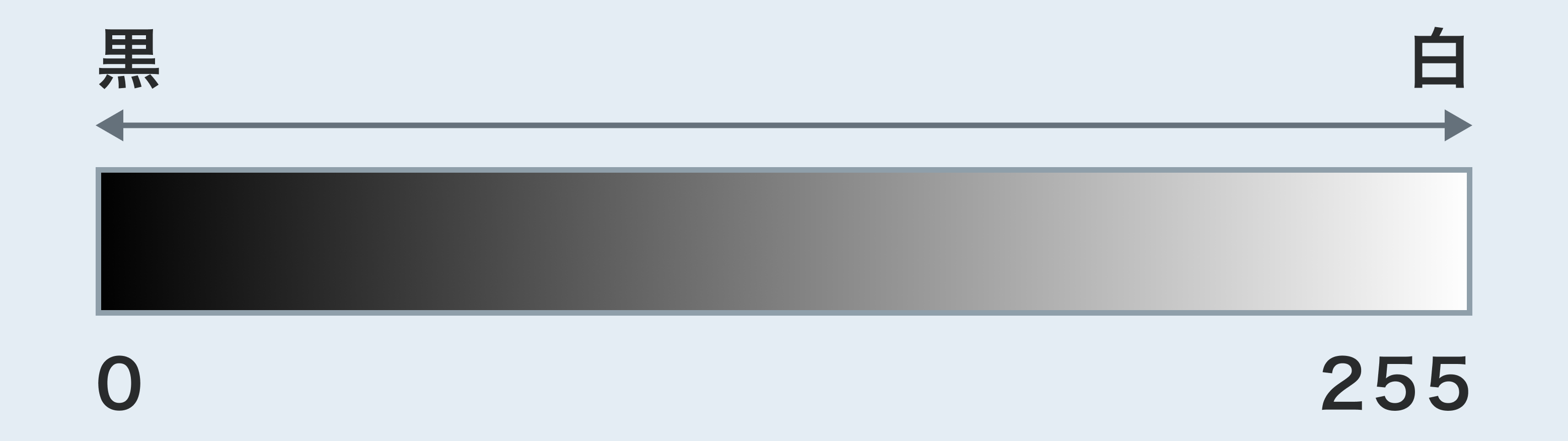
| Grayscale | Specifies a value from 0 to 255, where 0 is black and 255 is white. | fill(255) |
| RGB | Specifies the values of red, green, and blue from 0 to 255. | fill(62, 168, 255) |
| HEX | Specifies the color in hexadecimal. It starts with # followed by a 6-digit hexadecimal number in the order of RRGGBB. | fill("#0868CE") |
Specifying Transparency
Let's specify the transparency of shapes. Transparency is specified in the second or fourth argument of the fill() or stroke() function, with a value from 0 to 255. A value of 0 is completely transparent, and 255 is completely opaque.
function setup() {
    createCanvas(520, 320);
    background('#D6E3ED');

    noStroke();
    fill(255, 0, 0, 100);
    circle(230, 140, 200);
    fill(0, 255, 0, 100);
    circle(290, 140, 200);
    fill(0, 0, 255, 100);
    circle(260, 190, 200);
}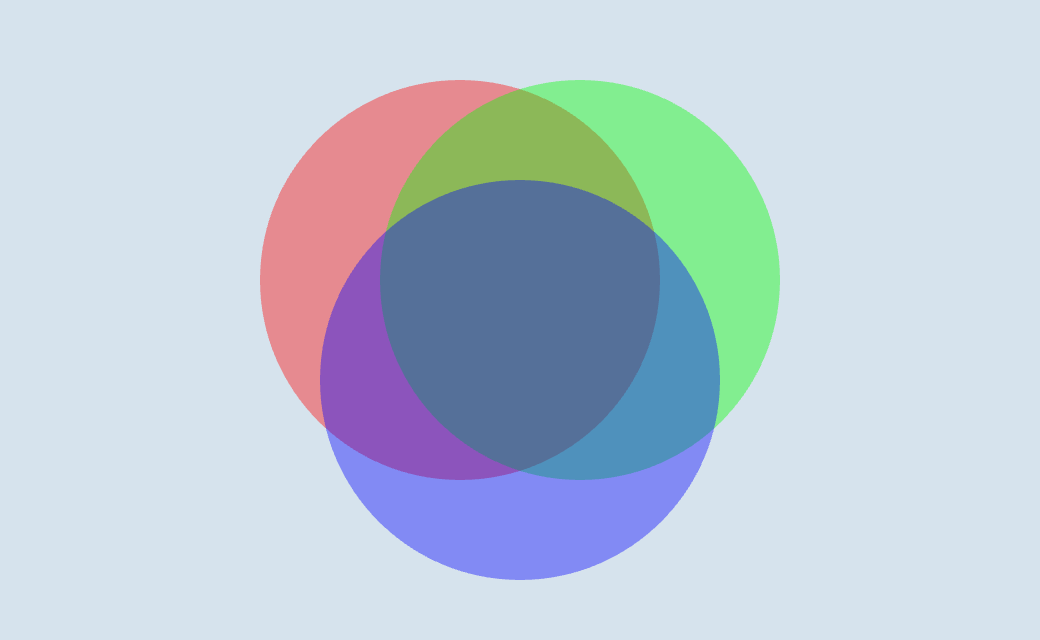
By setting the fourth argument of the fill function to 100, you can draw semi-transparent shapes, showing that the colors blend where the shapes overlap.
Order of Drawing
In programming, code is generally executed sequentially. This means that the program processes from top to bottom in order. Let's look at the following code.
function setup() {
    createCanvas(520, 320);
    background('#D6E3ED');

    circle(320, 140, 200);
    rect(0, 150, 520, 140);
}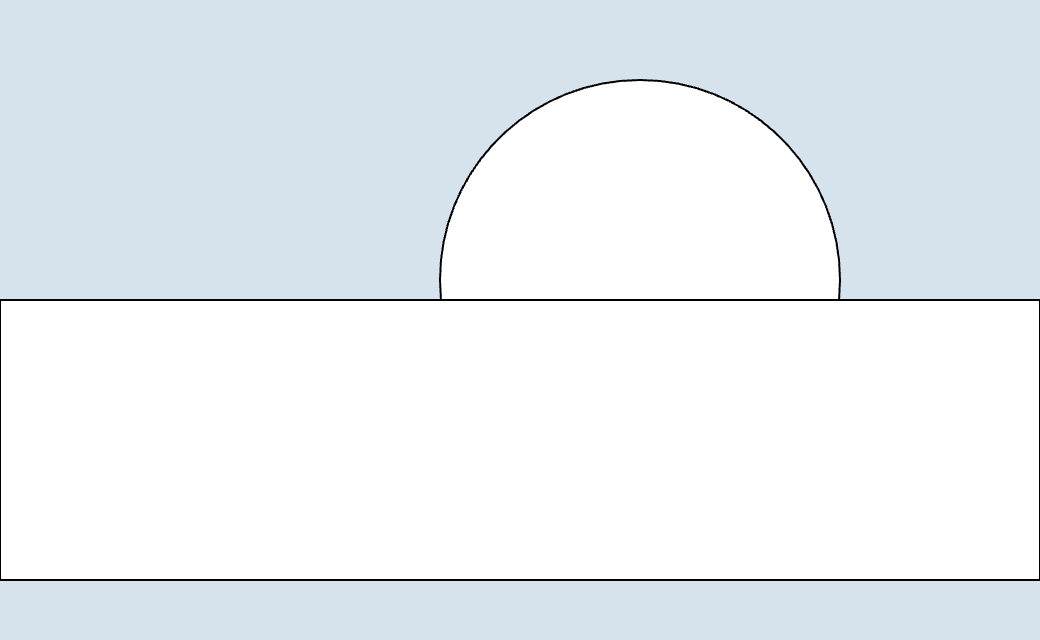
The circle is hidden behind the rectangle. This is because the code is executed sequentially from top to bottom, and the circle function is called before the rect function. The rect function, called later, overwrites the circle function, so the circle is hidden behind the rectangle.
Creating Complex Shapes
p5.js can draw not only simple shapes but also complex ones. Let's define a new shape by connecting multiple points.
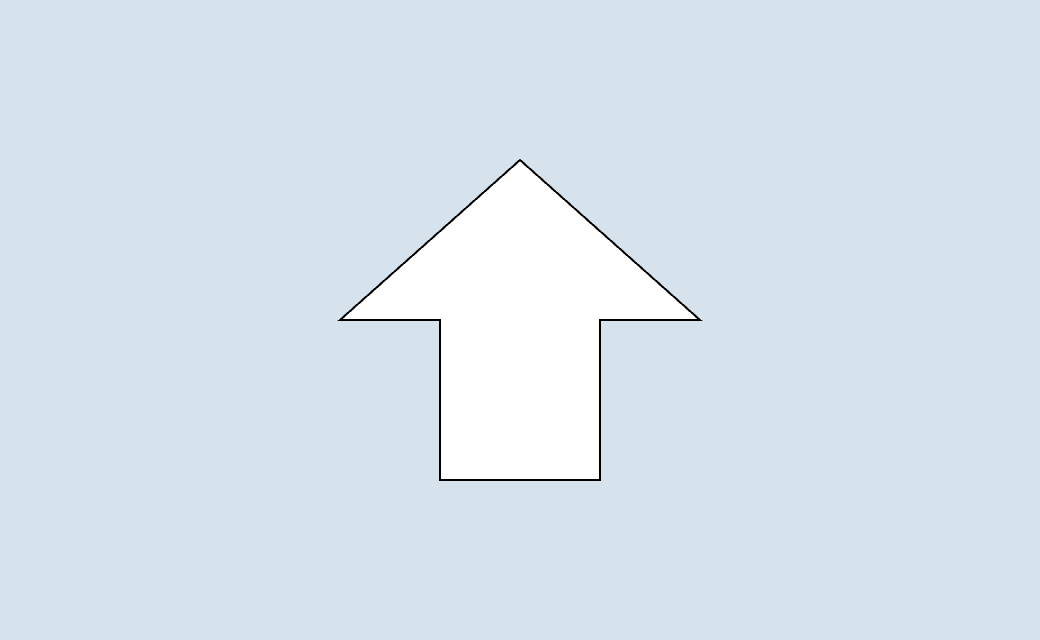
The beginShape() function signals the start of a new shape. Then, using the vertex(x, y) function, you define the vertices by placing points on the xy plane. Finally, by calling endShape(CLOSE), you can close the shape.
function setup() {
    createCanvas(520, 320);
    background('#D6E3ED');

    beginShape();
    vertex(260, 80);
    vertex(170, 160);
    vertex(220, 160);
    vertex(220, 240);
    vertex(300, 240);
    vertex(300, 160);
    vertex(350, 160);
    endShape(CLOSE);
}