
2024-11-11
What are "Variables"?
In this section, you will learn about "variables". Variables are like boxes that store data, and the data stored in the box can be referenced and calculated. By using variables, you can avoid the hassle of writing the same value multiple times and update values all at once. Additionally, it improves the readability of the program and makes maintenance easier.
- You can fix the code with a single change
- Variable names make the code easier to read (improve readability)
Practice 3.1.1
Let's improve the following sample code by using variables.
function setup() {
    createCanvas(400, 240);
    background('#D6E3ED');

    circle(80, 120, 120);
    circle(200, 120, 120);
    circle(320, 120, 120);
}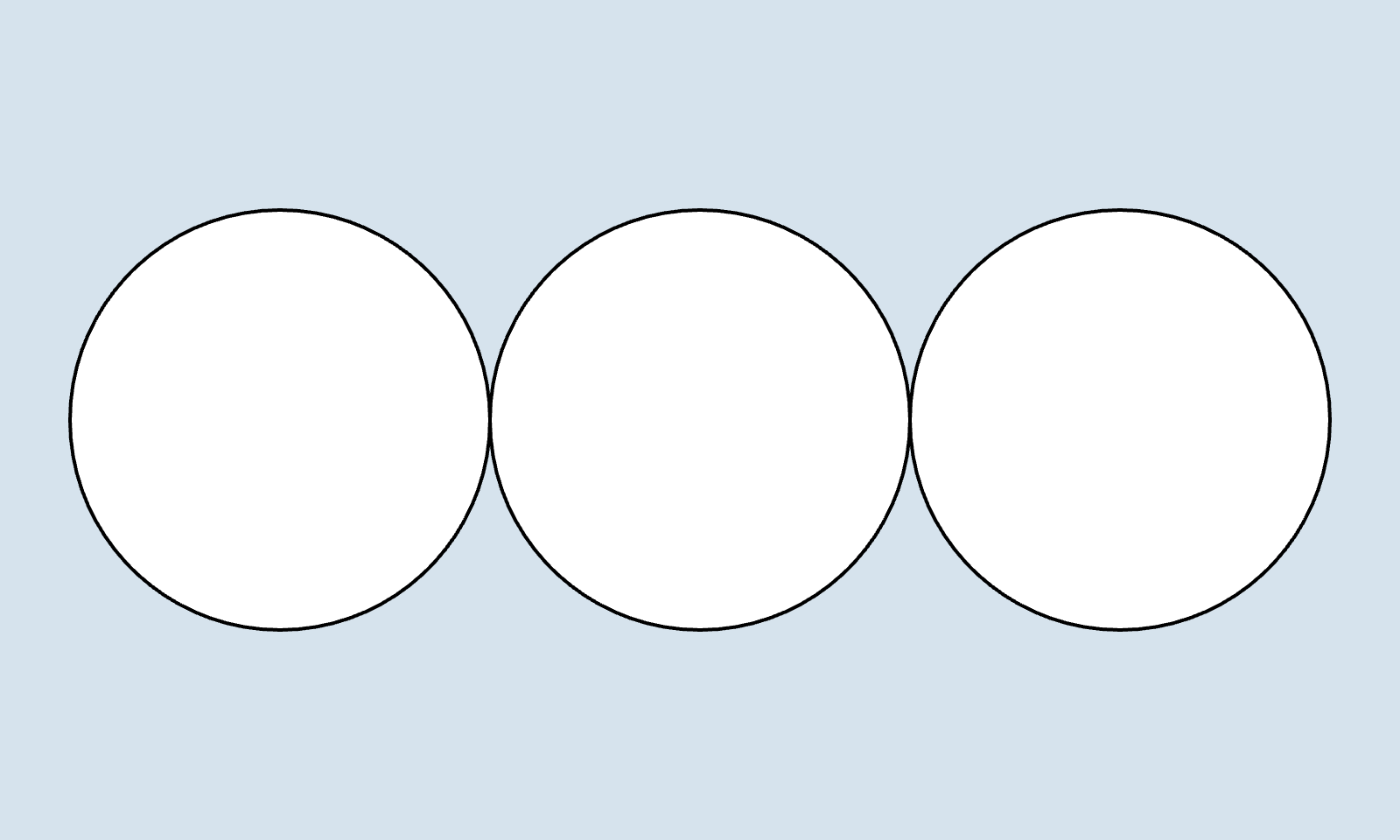
Currently, the diameter of the circles is fixed, so you need to individually modify all the values when making changes. To avoid this, let's manage the diameter of the circles with a variable.
function setup() {
    createCanvas(400, 240);
    background('#D6E3ED');

    let radius = 120; // Manage the diameter of the circles with a variable

    circle(80, 120, radius);
    circle(200, 120, radius);
    circle(320, 120, radius);
}
Next, change the value of the radius variable to 150 and confirm that the diameter of all the circles is updated at once.
Declaring Variables
To use a variable, you first need to declare it. Declaration is done by specifying the variable name following let. You can freely decide the variable name, but here we will name it radius for clarity. Then, assign a value to that variable.
let radius; // Declare a variable
radius = 120; // Assign a value

// Invalid variable names
let 0number = 120; // Error! Variable names cannot start with a number.
let ✞BlackWing✞ = 120; // Error! Variable names cannot contain symbols.
You can also declare a variable and assign a value to it at the same time. Writing it in one line looks like this:
let radius = 120; // Declare a variable and assign a valueYou only need to declare a variable once. After that, you can refer to or update the value using the variable name.
let x = 120; // Declare a variable and assign a value
x = 100; // Update the value of the radius variable from 120 to 100

let x = 140; // Error!!! You cannot redeclare a variable!
Practice 3.1.2
In the previous modification, we managed the diameter of the circles with the radius variable, allowing for bulk changes to the value.
function setup() {
    createCanvas(400, 240);
    background('#D6E3ED');

    let radius = 120; // Store the diameter of the circles in the `radius` variable

    circle(80, 120, radius);
    circle(200, 120, radius);
    circle(320, 120, radius);
}
This time, let's manage the y-coordinate of the circles with a variable.
function setup() {
    createCanvas(400, 240);
    background('#D6E3ED');

    let radius = 120; // Store the diameter of the circles in the `radius` variable
    let y = 120; // Store the y-coordinate of the circles in the `y` variable

    circle(80, y, radius);
    circle(200, y, radius);
    circle(320, y, radius);
}
Since the y-coordinate is managed with a variable, for example, if you want to place all the circles in the center of the screen, you can do so by simply changing the value of y. Additionally, by using the variable y as the second argument and the variable radius as the third argument in the circle function, the code becomes more readable.
Built-in Variables
<!-- What are built-in variables? -->
p5.js provides several "built-in variables" that can be used within the program. Built-in variables are variables that are pre-declared and assigned by p5.js. For example, width and height are built-in variables used to get the width and height of the canvas.
function setup() {
    createCanvas(400, 240);
    print(width); // Outputs `400`
    print(height); // Outputs `240`
}
In the above code, although no variable declaration is made, width is automatically declared and assigned 400, and height is automatically declared and assigned 240.
There are various other built-in variables in p5.js.
| Variable Name | Description |
|---|---|
windowWidth | Width of the window |
windowHeight | Height of the window |
width | Width of the canvas |
height | Height of the canvas |
mouseX | X-coordinate of the mouse |
mouseY | Y-coordinate of the mouse |
For more details, refer to the p5.js reference.
Practice 3.1.3
Next, let's improve the code so that the circles are always displayed in the center of the screen, even if the vertical size of the screen changes. Let's review the previous code.
function setup() {
    createCanvas(400, 240);
    background('#D6E3ED');

    let radius = 120; // Store the diameter of the circles in the `radius` variable
    let y = 120; // Store the y-coordinate of the circles in the `y` variable

    circle(80, y, radius);
    circle(200, y, radius);
    circle(320, y, radius);
}
As it stands, if the vertical size of the screen is changed from 240 to 400, the position of the circles will be off-center. Therefore, to place the circles in the center of the screen, we will use the height variable to calculate the y-coordinate.
function setup() {
    createCanvas(400, 400);
    background('#D6E3ED');

    let radius = 120; // Store the diameter of the circles in the `radius` variable
    let y = height / 2; // Calculate the y-coordinate of the center of the screen and store it in the `y` variable

    circle(80, y, radius);
    circle(200, y, radius);
    circle(320, y, radius);
}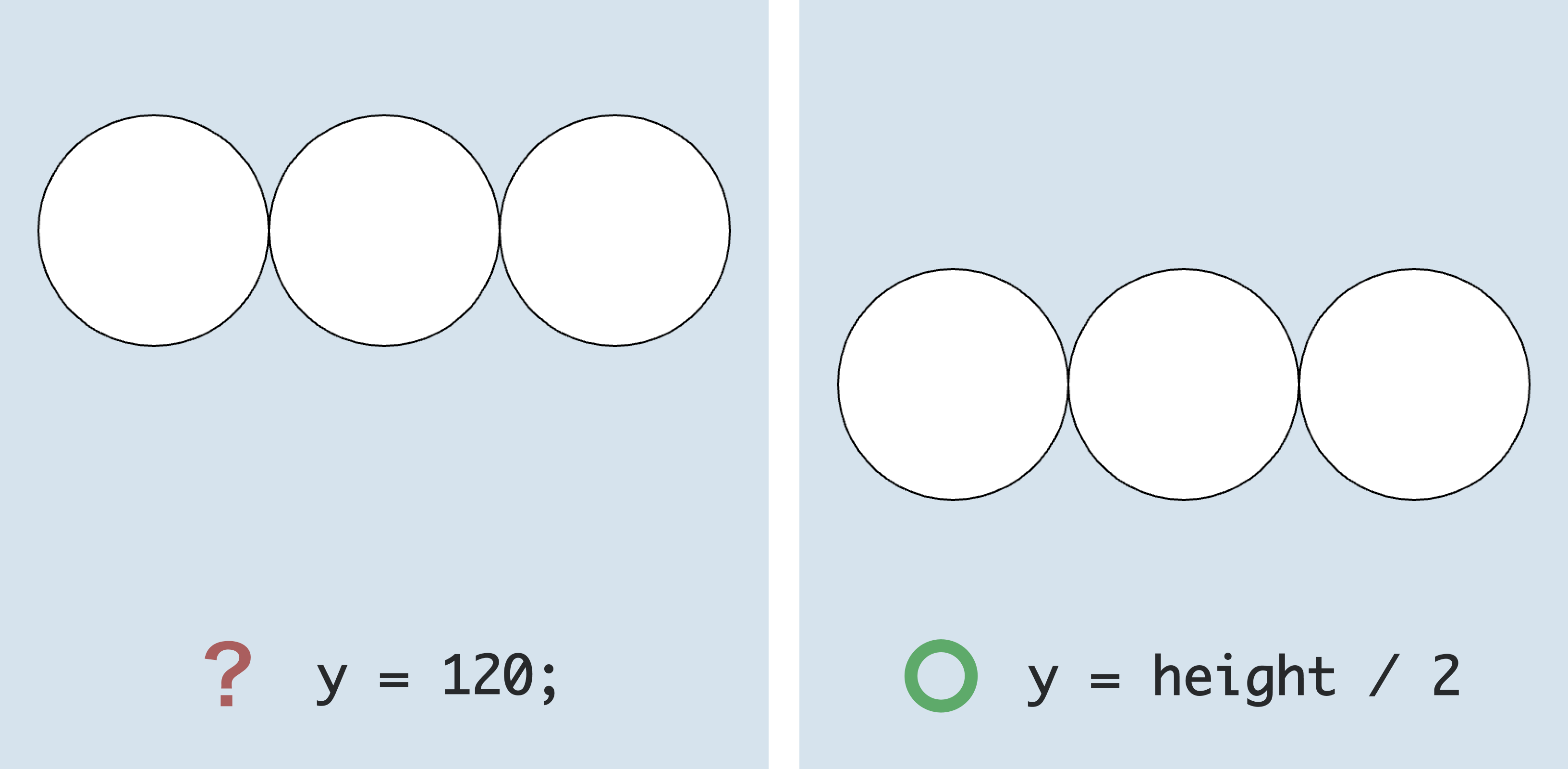
In this code, height / 2 is used to calculate the y-coordinate of the center of the canvas, and that value is stored in the y variable. / is an operator that performs division, and it has the same meaning as ÷. This ensures that the circles are always centered, even if the vertical size of the screen changes.