
2025-02-10
Using Icons
Icons are great for conveying information visually while keeping your design simple. By using icons in your slides, you can supplement information that text alone can't fully communicate. You can create your own icons, but there are many icon resources available online. Here, we'll explain how to download icons from Iconify and insert them into your slides.

_URL : https://icon-sets.iconify.design/_
Inserting Icons into Slides
Let's insert an icon into this slide to supplement the information.

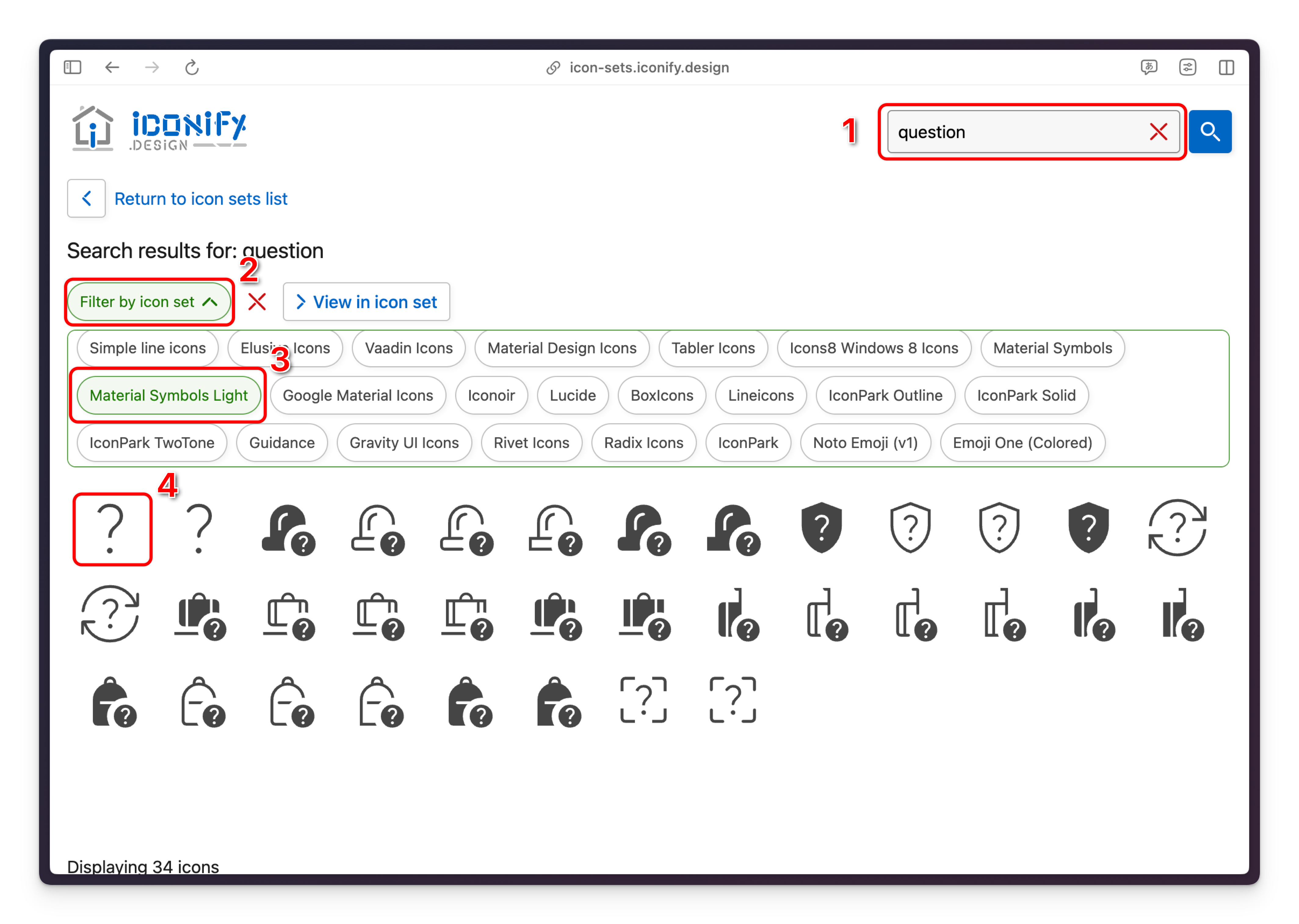
First, go to https://icon-sets.iconify.design/ and enter question in the search form. You'll see various icons. Iconify offers multiple icon sets, and the search results will show icons from all of them. Note: Using icons from different sets can make your slides look inconsistent, so it's best to use icons from the same set whenever possible. For this example, click the Filter by icon set button, select Material Symbols Light, and download the question icon.
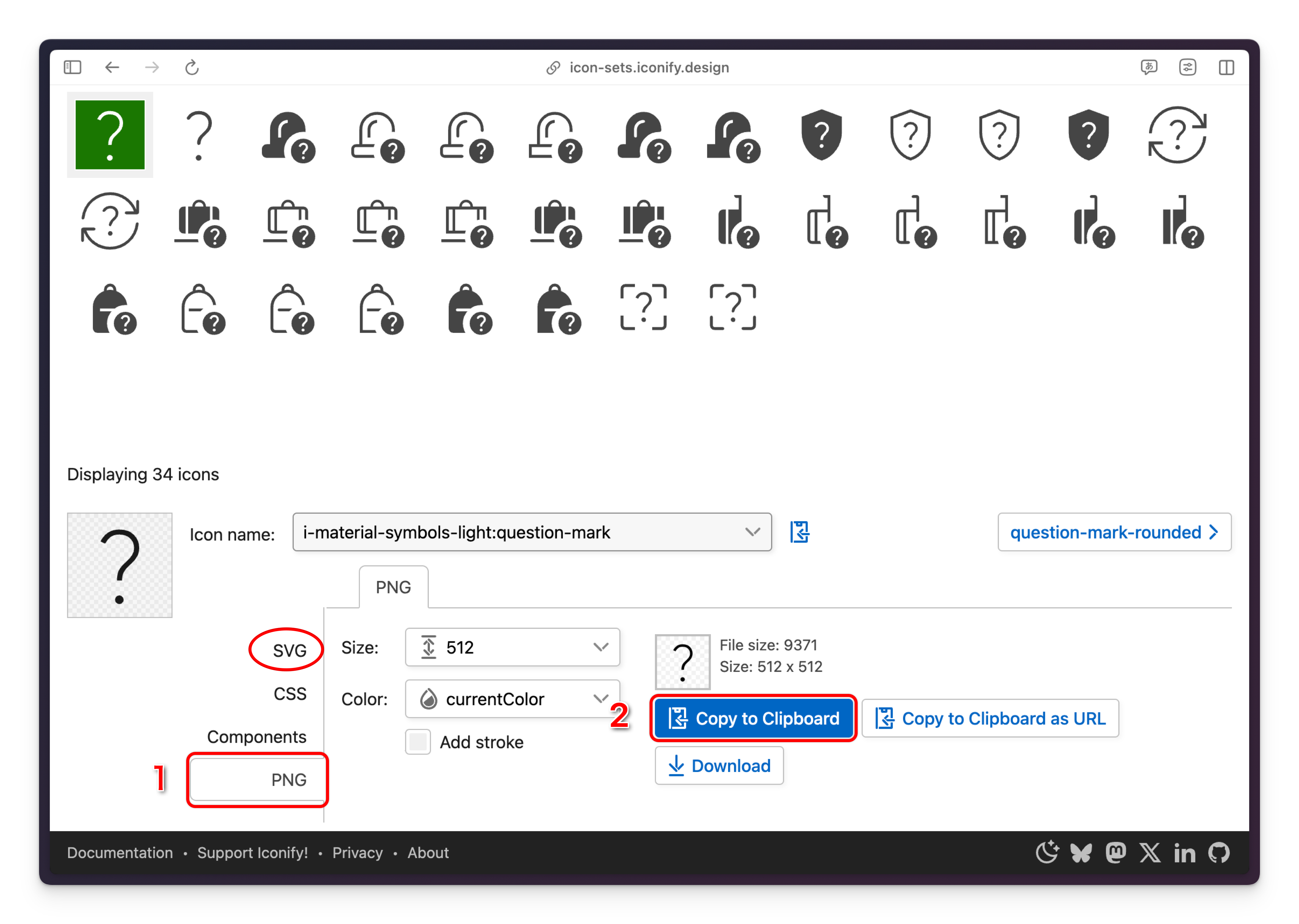
You can download icons in SVG, CSS, Components, or PNG formats. For slides, PNG is recommended. If you want to customize the icon in Figma or similar tools, download it as SVG. Select the PNG tab and click the Copy to Clipboard button.
Next, return to Canva and paste the icon onto your slide with Ctrl + V. Adjust the icon size to fit your slide content. Similarly, search for and insert the book and research icons.
The image size is set to 104px × 104px.