2025-02-10
This section explains in detail how to set margins on slides, which we have so far set intuitively. You can show or hide margins via "File" → "Settings" → "Show margins."

Let's create the following slide as we explain margin settings.
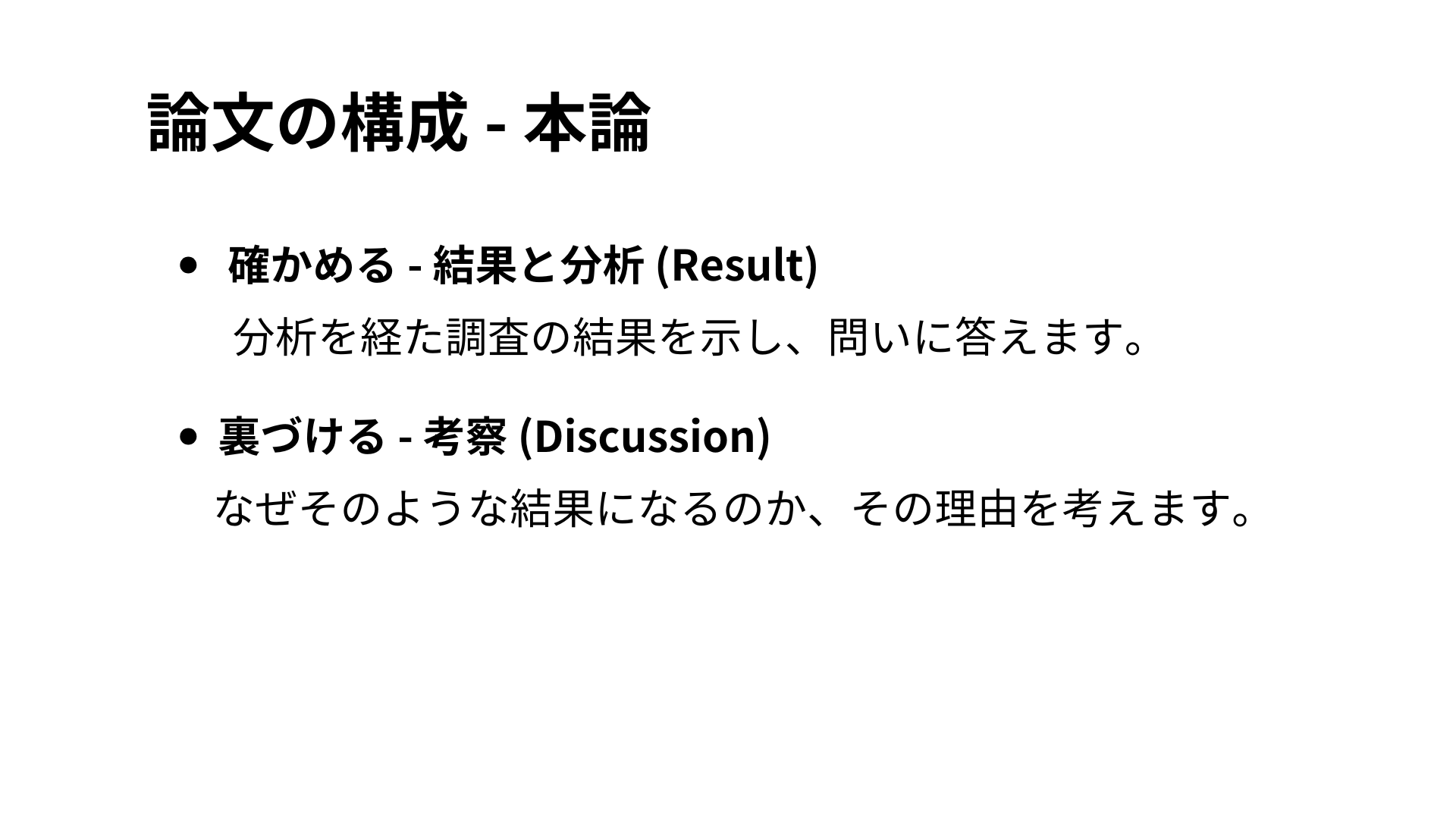
Paper Structure - Main Body
Confirm - Results and Analysis (Result)
Show the results of your research and answer the question.
Support - Discussion
Consider the reasons behind the results.
Standard Margins
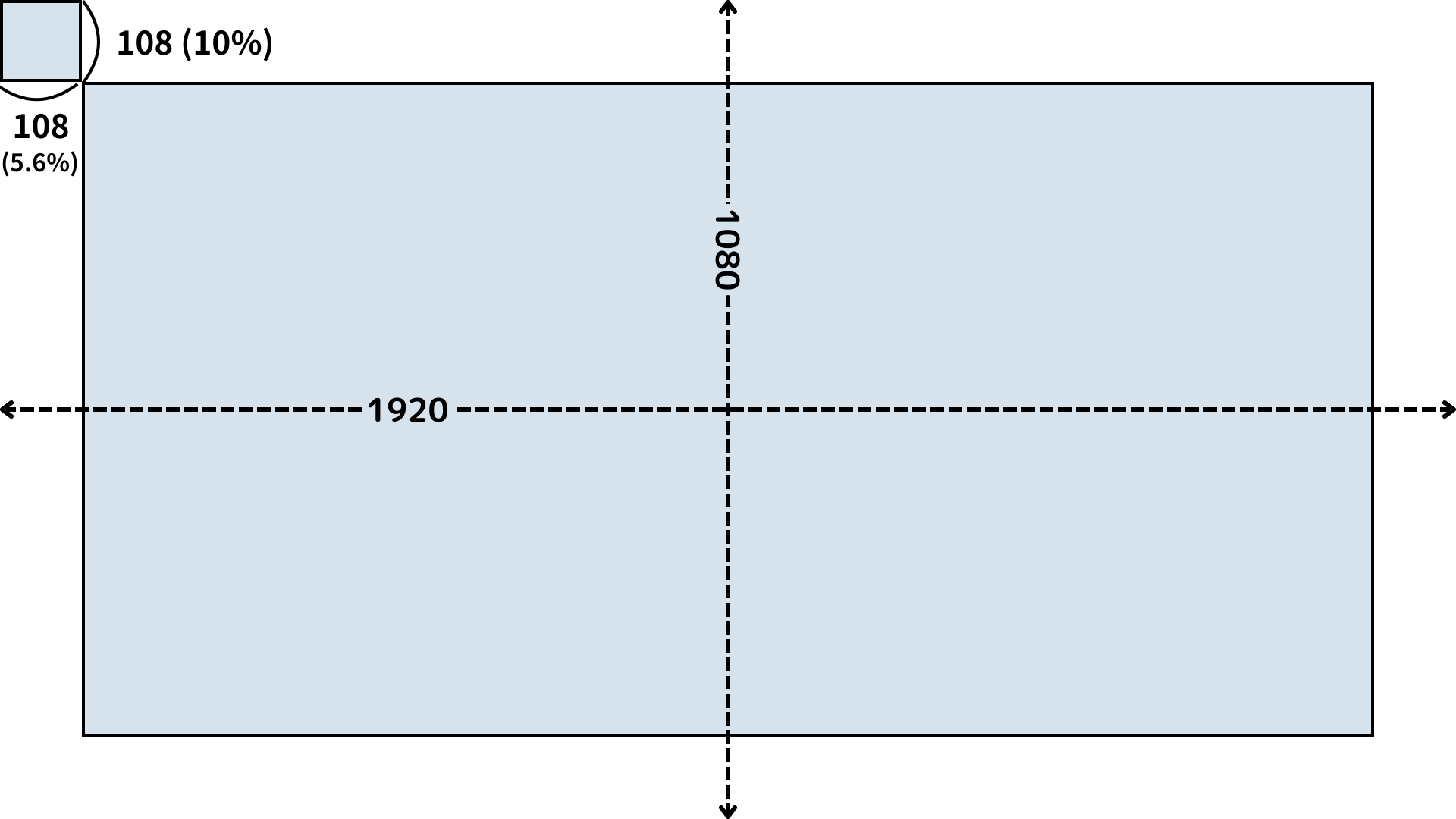
The default Canva margin is 108px on all sides for a slide size of 1920×1080px. This margin is important for a clean appearance. Without margins, text and images would be too close to the edges and hard to read.
Using Guides
The default margins are about 10% vertically and 5.6% horizontally, which can feel unbalanced. Let's use guides to adjust the side margins.
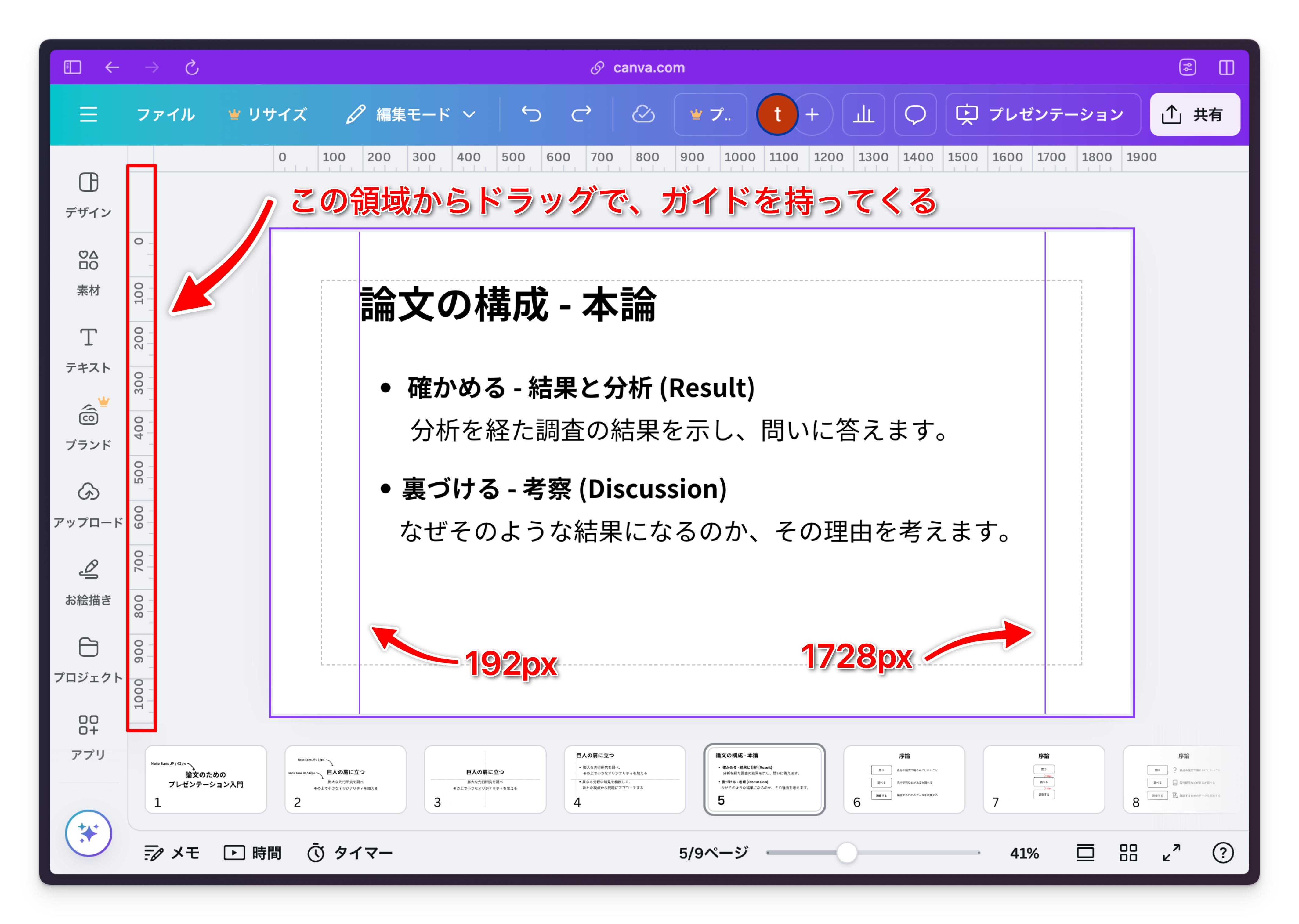
First, show the rulers. In Canva, you can toggle guides with the shortcut Shift + R.

Next, create guides. To add vertical guides, drag from the left ruler. Set the left guide at 192px and the right guide at 1728px.
Placing Text Using Guides
Now, align your text to the left using the guides. With guides set, text will snap to them as you move it.
For vertical placement, stack the text from the top down. But how should you set the spacing between text blocks?
Margins Between Text
Set horizontal margins in advance based on the type of text to maintain consistency. For example:
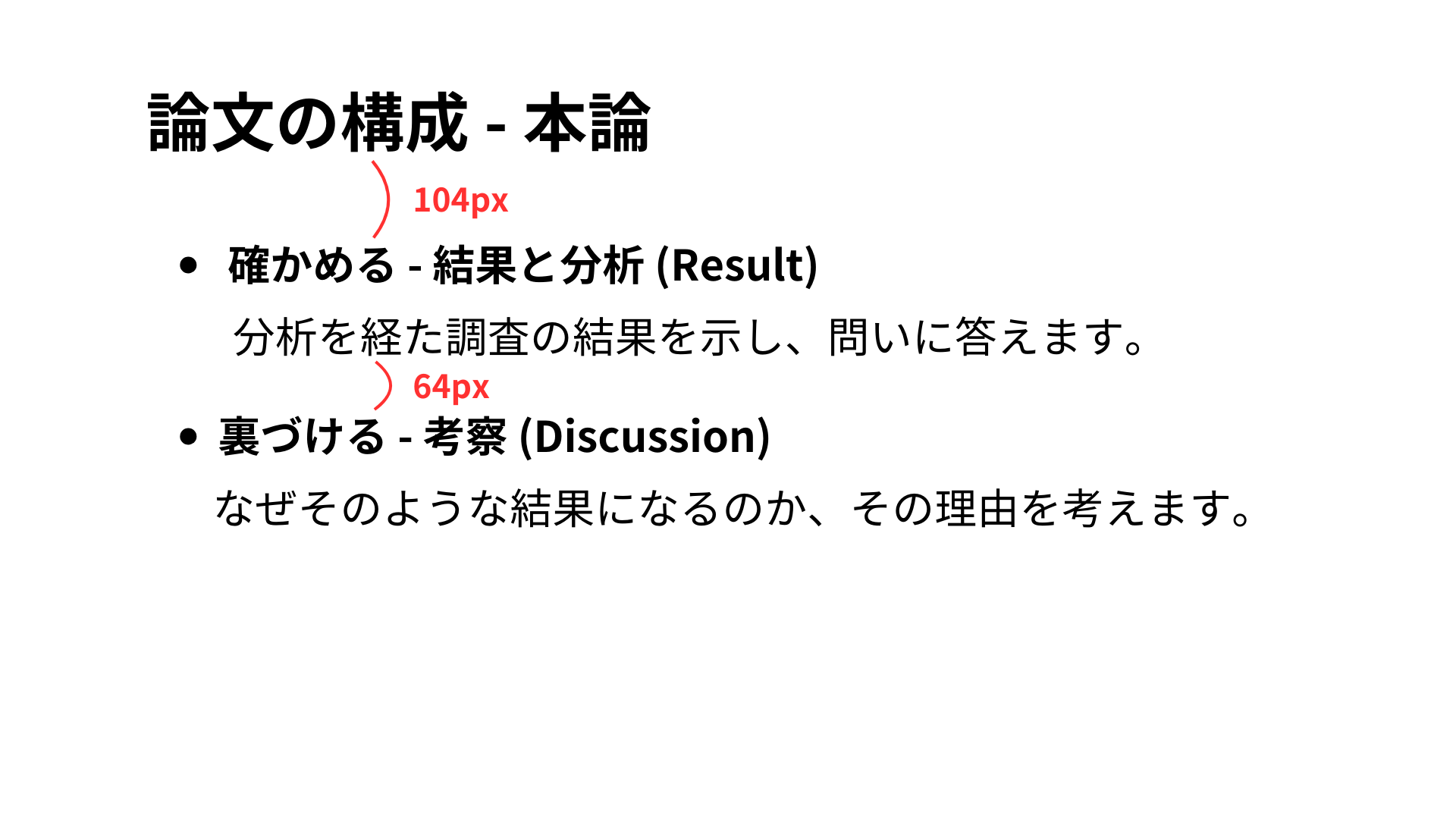
- Title text - 104px
- List text - 64px
When arranging objects according to margin rules, hold the Alt key while moving objects to display the distance between them. Use this to complete your slide.