§1.3 Basic Jupyter Notebook Operations
KM
bykarutt
2025-06-03
Jupyter Notebook offers many keyboard shortcuts to make running code and managing cells smoother.
Edit Mode vs. Command Mode
Jupyter Notebook has two modes. Knowing which mode you're in helps you use shortcuts correctly.
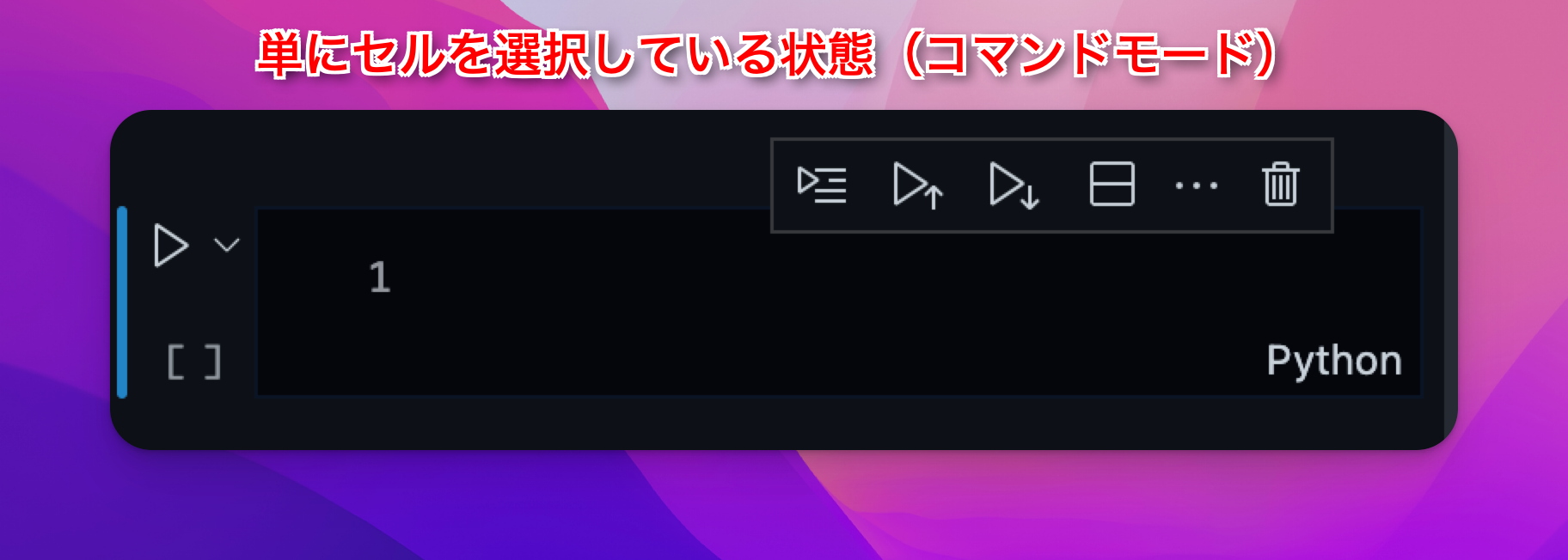
- Command Mode
- Lets you add, delete, or move cells.
- Press
Escto switch from edit mode. - The cursor disappears from the cell, and the whole cell is selected.
- Edit Mode
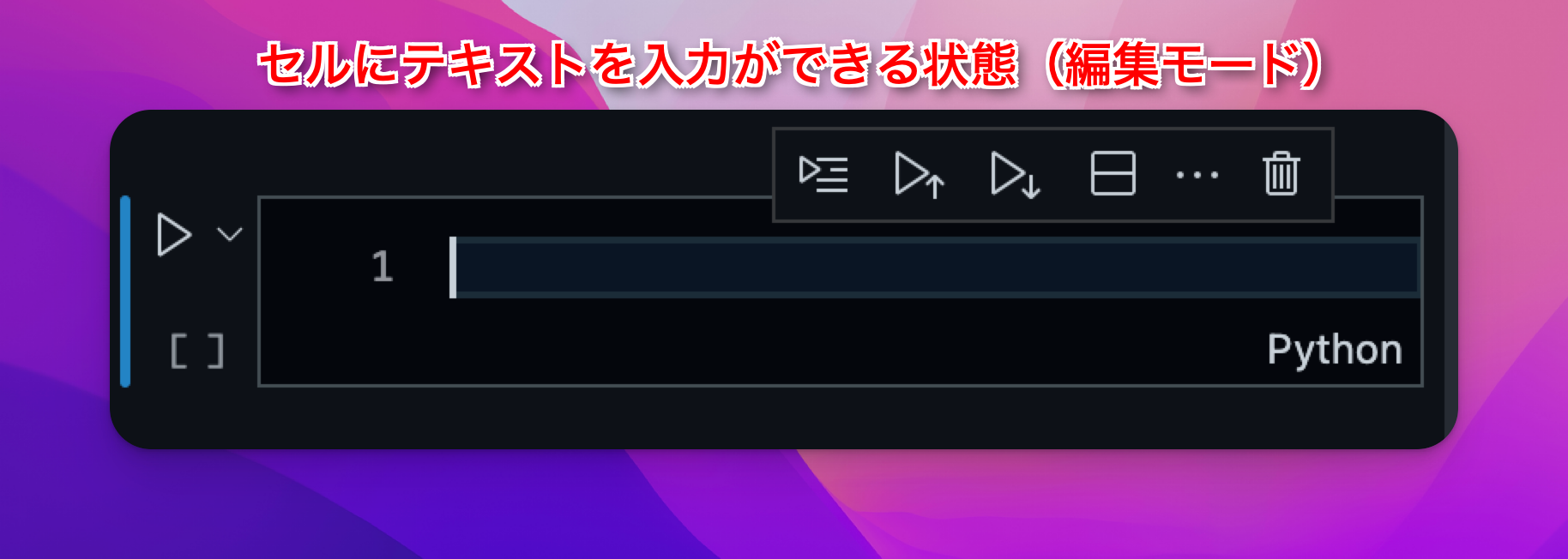
- Lets you type and edit inside a cell.
- Click a cell or press
Enterto enter edit mode. - The cursor appears inside the cell, ready for input.
Main Shortcuts for Both Modes
| Shortcut | Action |
|---|---|
Ctrl + Enter | Run the cell and stay in the same cell |
Main Shortcuts in Command Mode
| Shortcut | Action |
|---|---|
A | Add a cell above |
B | Add a cell below |
X | Delete the selected cell |
M | Convert to Markdown cell |
Main Shortcuts in Edit Mode
| Shortcut | Action |
|---|---|
Ctrl + [ | Decrease indent |
Ctrl + ] | Increase indent |
Ctrl + / | Comment/uncomment the line |
Ctrl + Z | Undo last action |
Ctrl + Shift + Z | Redo last action |
Ctrl + A | Select all in the cell |
Ctrl + C | Copy selected text |
Ctrl + V | Paste copied text |
Tips for Switching Modes
- Edit → Command: Press
Esc - Command → Edit: Click inside the cell
- If shortcuts don't work, check your mode!